
TABLE OF CONTENTS
- Before you begin
- Assign or update an employee role
- Available employee roles
- Limit access by location or building
- Assigning access across multiple incident types
- Employee roles do not control report submission
- Bulk role assignments
Employee roles determine what an employee can see and manage within Guardian after a report has been submitted. Administrators with the appropriate permissions can assign roles to employees and, when applicable, limit that access to specific incident types, locations, or buildings.
Before you begin
Every employee profile receives the default Staff role unless additional access is assigned.
The Staff role does not provide elevated case-management access. It is comparable to the standard access provided to a student user.
Employee roles control access to submitted cases and potentially platform configurations. They do not determine which reporting forms an employee can submit. Report-submission access is controlled separately through the incident types Incident Access setting.
For more information, see Understanding Incident Access vs. Employee Roles in Guardian.
Assign or update an employee role
To assign a role manually:
Select the Employees tab from the main navigation.
Search for the employee using their name, email address, or employee ID number.
Locate the employee in the results.
Find the Actions column on the right side of the page corresponding to the employee's record.
Select the cogwheel icon labeled View Role.

Select the appropriate role for the employee.
If applicable, select the incident types, locations, and buildings to which the role should apply.
Click Update to save the employee's role configuration.
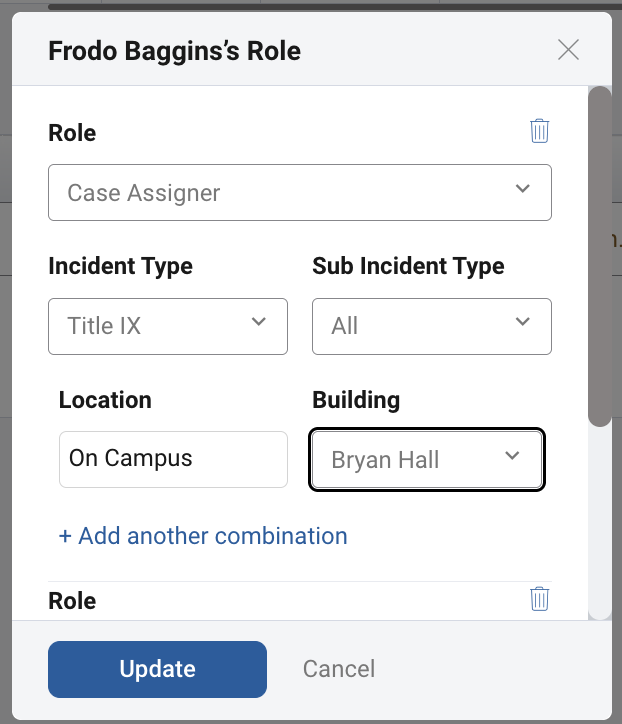
An employee may receive access to multiple incident types. Configure each applicable incident type and access combination based on the employee's responsibilities.
Available employee roles
1. Staff
Staff is the default role assigned to all employee profiles.
A Staff user does not receive elevated access to manage cases. The employee may still submit reports if included in the applicable incident type's Incident Access configuration.
Use this role for employees who need a Guardian profile, but do not need administrative or case-management access.
2. Incident Type Officer
An Incident Type Officer can access cases only when the individual has been added to the case as a:
Case Owner
Case Investigator
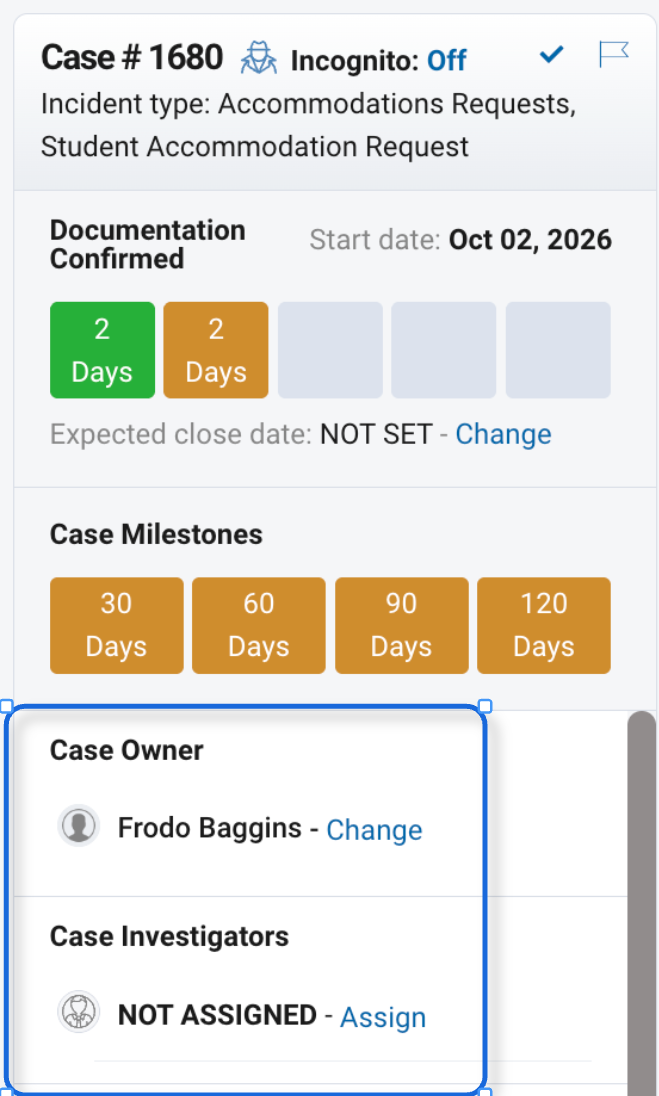
The role does not automatically provide access to every case within the selected incident type. Use this role for employees who should manage only the cases specifically assigned to them.
3. Case Assigner
A Case Assigner can access cases within the incident types defined in their role. They can also assign Case Owners and Case Investigators.
A Case Assigner may be assigned to one or multiple incident types. Access may also be limited by location or building.
Use this role for employees who oversee case distribution or need access to all applicable cases within selected incident types.
4. Incident Type Admin
An Incident Type Admin has administrative access within the Incident Types defined in their role configuration.
This includes the case access available to a Case Assigner, as well as access to applicable Configuration settings for the selected incident types.
Depending on the institution's configuration, an Incident Type Admin may:
View applicable cases
Assign case owners and investigators
Manage cases within the selected incident types
Access and update configurations associated with those incident types
Use this role for employees who administer one or more specific programs, departments, or case-management processes without requiring unrestricted access to the entire platform.
5. Super Admin
A Super Admin has unrestricted access throughout the Guardian environment.
Super Admins can view and manage all cases, users, incident types, reports, roles, and platform configurations.
Because this role provides the highest level of access, it should be assigned only to authorized individuals who require responsibility for the entire Guardian environment.
6. View Only
The View Only role allows an employee to view applicable cases without adding, editing, or managing case information.
Access can be limited to selected incident types and, when applicable, specific locations or buildings.
Use this role for employees who need awareness of cases but should not modify or add to the case record.
7. Configuration Manager
A Configuration Manager can access the Configurations area of Guardian but does not receive access to case records.
This role may be appropriate for a technical administrator who assists with platform configuration but does not need to view sensitive case information.
Limit access by location or building
Case Assigner and View Only roles may be further limited by a defined Location or Building.
For example, an employee may need access to:
Cases for one campus only
Cases associated with a particular residence hall
Cases within one incident type at a specific location
Different incident types at different locations
Location-based access depends on the applicable location and building information being captured on the report.
If your institution uses location-based role permissions, retain the standard Location and Building fields on the applicable incident-reporting forms. If those fields are not included or completed, Guardian may not have the information needed to apply the intended location restrictions.

Assigning access across multiple incident types
An employee may need different levels of access across different incident types.
For example, an employee could be:
An Incident Type Admin for one incident type
A Case Assigner for another incident type
An Incident Type Officer for cases individually assigned within a third incident type
Review each employee's responsibilities and assign only the access needed for their work.
Employee roles do not control report submission
Assigning an employee role does not automatically allow the employee to submit every type of Incident Report (IR).
The ability to submit a report is controlled by the incident type’s Incident Access setting. If an employee can manage existing cases but cannot locate or submit a reporting form, review the Incident Access configuration for that incident type.
Likewise, allowing an employee to submit a report does not automatically grant access to manage the resulting case.
Bulk role assignments
Institutions with a large number of role assignments may be able to manage access through a User Access Levels file delivered through an approved SFTP integration.
Bulk role assignment is not currently available through Guardian's manual Data Importer.
Because the file requirements and implementation process require technical coordination, contact Campus Kaizen Support before attempting to submit a User Access Level file.