
TABLE OF CONTENTS
- What determines who can submit a report?
- What determines who can view and manage cases?
- Key Takeaway
- Common examples
- Before changing Incident Access
Guardian uses separate settings to determine:
Who can submit a particular type of report
Who can view and manage cases after reports are submitted
A user may be able to manage existing cases without being able to submit a new report of that type. Similarly, someone may be able to submit a report without receiving access to manage the resulting case.
What determines who can submit a report?
The Incident Access setting determines who can submit a report for a particular incident type.
Incident Access is configured separately for each incident type. To review or update it:
Select Configurations from the main navigation.
Open the Incident Types tab.
Locate the appropriate incident type.
Select Modify.
Locate the Incident Access setting.
Select the appropriate user groups and then select Update.
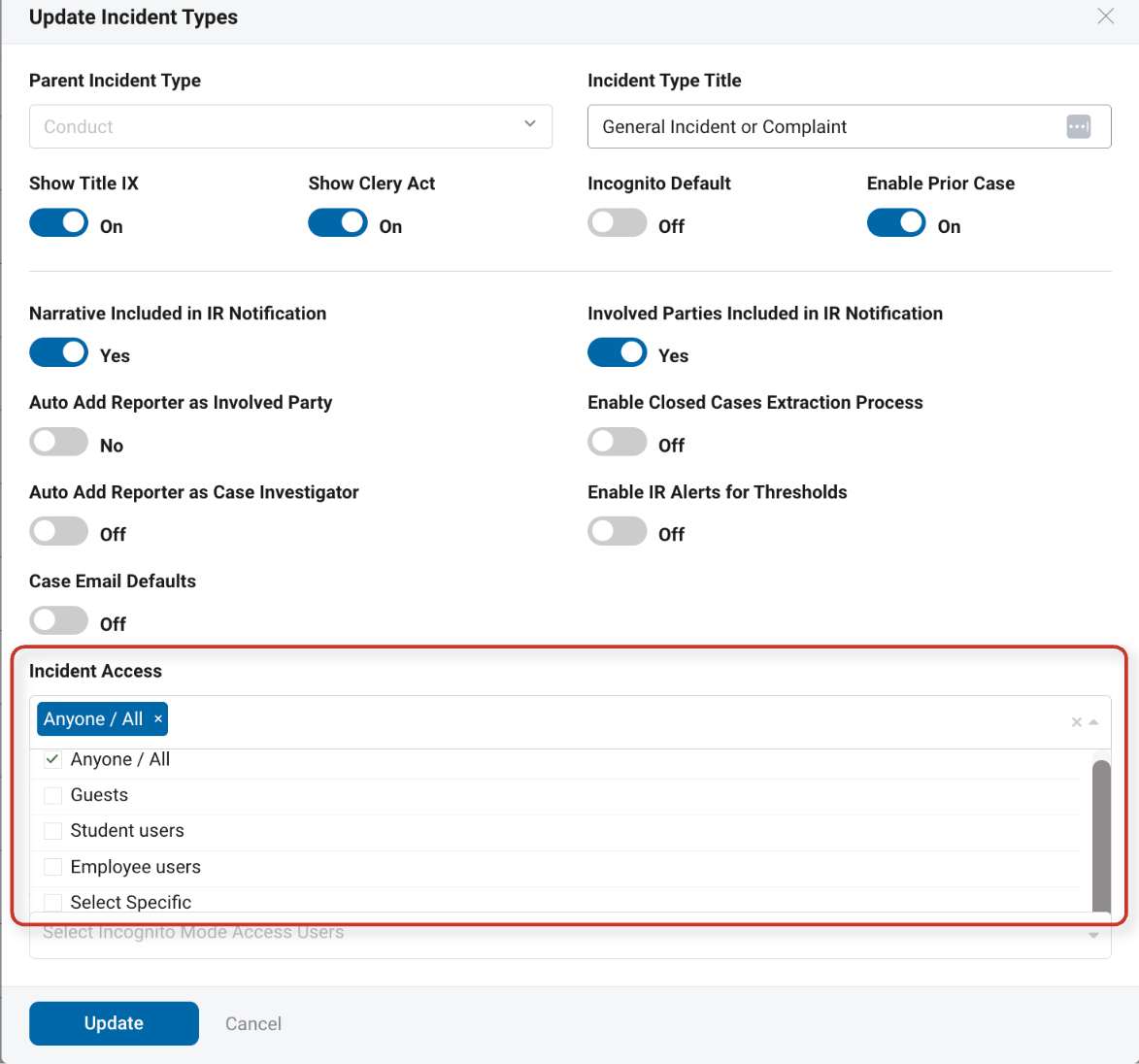
Depending on the needs of the institution, one or more of the following options can be selected.
1. Anyone / All: Allows any person to access and submit the report, regardless of whether the person is logged into Guardian or has a Guardian profile.
Use this option when the reporting form should be broadly available to members of the institution and the public.
2. Guests: Allows individuals who are not logged into Guardian to submit the report. These individuals may not have a student or employee profile in the platform. Use this option when unauthenticated or public reporting should be permitted.
3. Student Users: Allows individuals with student profiles in Guardian to submit the report while logged into the platform. A person is considered a student user when their profile appears under the Students tab. A logged-in user will see their name and assigned Guardian role displayed in the upper-right corner of the platform.
4. Employee Users: Allows individuals with employee profiles in Guardian to submit the report while logged into the platform. A person is considered an employee user when their profile appears under the Employees tab. Their specific employee role does not determine whether they can submit the report. A logged-in user will see their name and assigned Guardian role displayed in the upper-right corner of the platform.
5. Select Specific: Allows administrators to identify individual users who may submit the report. When Select Specific is selected, an additional Select Users field appears. Begin typing a person’s name and select the appropriate profile from the list. Only the users added to this field will be able to submit that report type unless another Incident Access group is also selected.
What determines who can view and manage cases?
A user's role and case assignment determine their ability to access and manage cases after reports have been submitted.
Depending on the role and configuration, this may include the ability to:
View submitted cases
Be assigned as a case owner or case investigator
Add notes, files, meetings, emails, or other case activities
Update case details and workflow status
Access cases within an assigned incident type
Manage incident type or platform configurations
Employee roles that grant access to cases may include access levels such as Super Admin, Incident Type Admin, Case Assigner, View Only, and Incident Type Officer. Case access for Incident Type Officers and Student Staff also depends on whether the user has been assigned as a case owner or case investigator. An employee role does not automatically grant the ability to submit every report type.
More information on Employee Roles can be found here:
Access Levels and User Roles
How to Assign or Update Employee Roles in Guardian
Understanding Employee Roles, Case Access, and Assignments in Guardian
Key Takeaway
- Incident Access controls report submission.
- Employee roles and applicable case assignments control case management via the Cases tab.
Common examples
1. A user can manage existing cases but cannot submit a new report
Review the incident type's Incident Access setting. The user may have the appropriate case-management role, but may not be included in a group permitted to submit that report.
If Incident Access is set to Select Specific, add the user under Select Users.
2. A user can submit a report but cannot manage the resulting case
Submitting a report does not automatically grant case-management access. An authorized administrator may need to assign the user as a case owner or case investigator or grant the appropriate Role.
3. Only certain users can find a report form
The incident type may be configured as Select Specific, or it may be limited to Student Users, Employee Users, or Guests. Review the Incident Access selections to confirm that the intended audience is included.
Before changing Incident Access
Changes to Incident Access affect who can submit future reports of that type. Before expanding access, confirm that the reporting form is appropriate for the selected audience and does not contain information or instructions intended only for specific users.