
TABLE OF CONTENTS
Guardian will not allow a workflow stage to be deleted while cases are still associated with it. In some situations, the system may report that cases are assigned to a stage even though no cases appear there in the Workflow View.
Why does this happen?
The Workflow View displays open, active cases. Archived and discarded cases are removed from that view, but they retain their workflow-stage association.
Guardian preserves this association so that, if a case is reopened or restored, it can return to the stage where it was previously located. Because the case remains associated with that stage, the stage cannot be deleted. This is why you might be receiving the error "There are currently (x) case(s) present in this stage" even if you cannot see any cases in that stage of the workflow.
How to find the associated cases:
- Open the applicable incident type.
- Navigate to the List View rather than the Workflow View.
- Filter the Workflow Stage field to the stage you are trying to delete.
- Filter the Status field to Archive.
- Review the cases displayed in the results.
- Repeat the search using the Discard status to determine whether any discarded cases are also associated with the stage.

How to remove the cases from the stage:
After locating the archived or discarded cases:
- Select the affected cases using the checkboxes on the left side of the List View.
- If all the displayed cases need to be selected, use the checkbox beside the Case Number column heading.
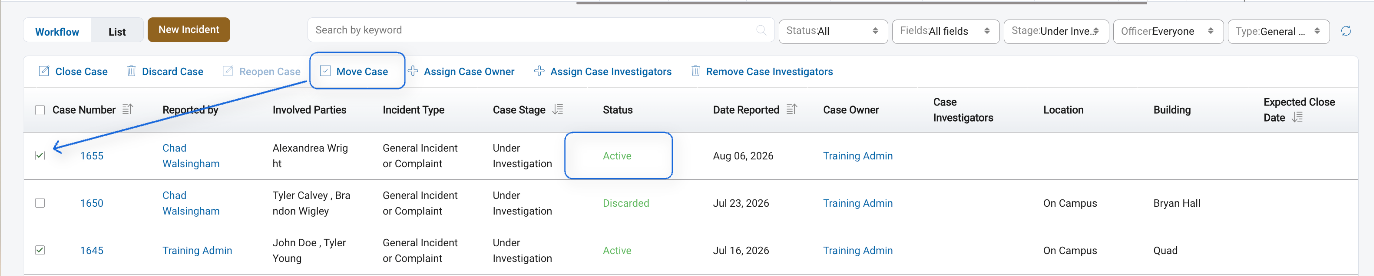
- Reopen or restore the selected cases. This can be done in the list view by using the "Reopen Case" function.
- Move the cases to another appropriate workflow stage.
- Archive or discard the cases again, if appropriate.

Once the case is reopened the status should change to "Active" and you will then be able to move the case to a different workflow stage.
Once all active, archived, and discarded cases have been moved from the original stage, return to the workflow configuration and delete the stage.
If you are unable to locate the cases identified by the error or do not have permission to reopen and move them, contact your Guardian administrator or Campus Kaizen Support for assistance.