
TABLE OF CONTENTS
- General Guest/Public Incident Reporting Link
- Incident Access Control
- Direct Reporting Form Links
- Guest/Public Form vs. Logged-In Form
- Key Takeaways
Guardian supports two main ways for users to submit Incident Reports: through a Guest/Public form or through a Logged-In form. While these forms are closely related, there are a few important differences in how they are accessed, who can submit them, and what fields appear.
General Guest/Public Incident Reporting Link
The Guest IR Form link can be found under Display Settings and is the general public reporting link for your site. Please note- only Super Admins have access to the Display Settings tab.
This link is not locked to one specific Incident Type. Instead, it opens a general reporting form where the reporter can choose from the available report types in the Report Type field.
This type of link is commonly used on public-facing websites when you want people without Guardian profiles to be able to submit reports.
Incident Access Control
Each Incident Type has a setting called Incident Access. This setting controls who is allowed to submit reports for that specific Incident Type.
For example:
If an Incident Type such as Care Referral has Incident Access set to Anyone/All, then guests/public users can access that report type. It will appear as an available option in the Report Type field on the Guest/Public reporting form.
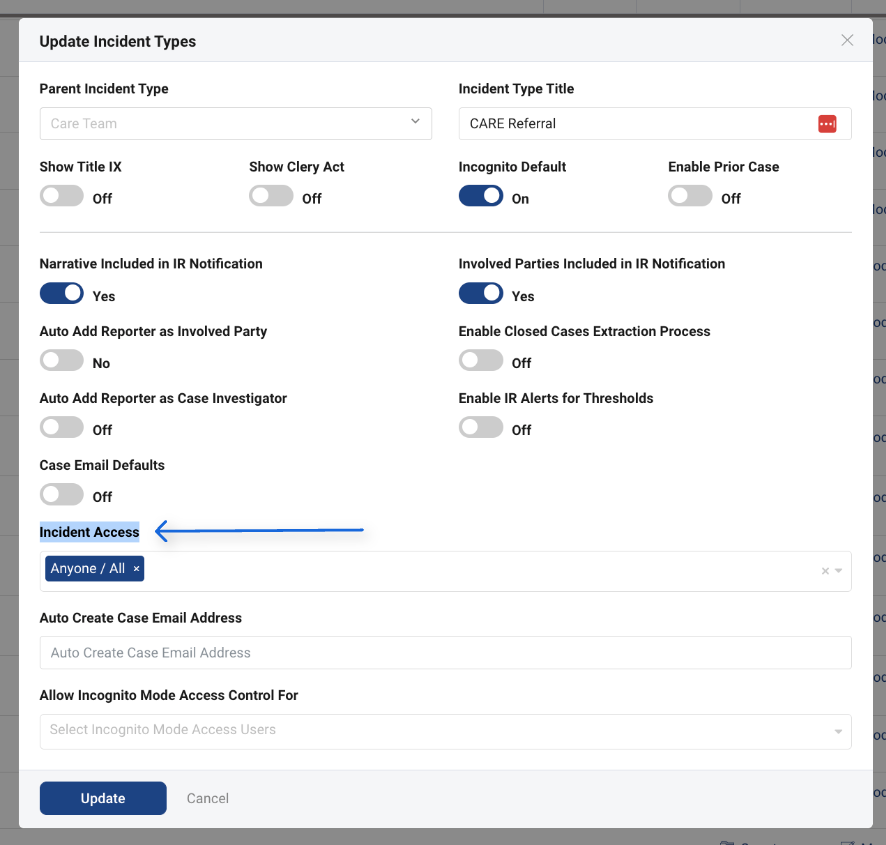
If an Incident Type is limited to only Employees, Students, or select specific users, then that report type will only be available to users who are logged in and meet that access requirement. It will not appear as an available option for guest/public reporters.
Because of this, when using the general Guest/Public IR Form link, it is important to confirm that each Incident Type you want guests to submit has the appropriate Incident Access setting.
Direct Reporting Form Links
In addition to the general Guest/Public IR Form link, each Incident Type can also have direct form URLs available from the IR Form Builder.
To access these links:
- Go to Configurations.
- Open the IR Form Builder.
- Select the Incident Type you want to review.
- At the top of the form builder, use one of the available form URL buttons:
- IR Form URL - Logged In Form
- IR Form URL - Guest/Public Form
Selecting either button copies that direct URL to your clipboard.

The Logged-In Form URL is intended for users who have Guardian profiles and can log into the platform. If they are not already logged in, they may be prompted to authenticate before submitting the report.
The Guest/Public Form URL is intended for users who do not have Guardian profiles or are submitting without logging in.
These direct links are locked to that specific Incident Type, which can be useful if you want to place a specific reporting link on a website.
Guest/Public Form vs. Logged-In Form
The Guest/Public and Logged-In versions of a form use the same IR Form Builder configuration.
The main difference is that the Guest/Public version includes three additional fields at the top of the form, such as:
- Full Name
- Position/Title
- Email Address
These fields are included so the system can collect basic reporter information from someone who is not logged into Guardian.
For logged-in users, these fields are not displayed because Guardian automatically identifies the reporter based on the user’s logged-in profile.
These fields can be removed from the form in the IR Form Builder, but doing so may limit the information collected about the reporter. If anonymous reporting is enabled and the reporter selects the option to remain anonymous, Guardian will automatically populate those reporter fields to reflect that the report was submitted anonymously.
Aside from these guest reporter fields, the rest of the form configuration is shared. Any custom fields added to the Incident Type form will appear on both the Guest/Public and Logged-In versions of that form.
Key Takeaways
The general Guest IR Form link in Display Settings allows public users to access a general reporting form and select from available public report types.
The Incident Access setting determines whether a specific Incident Type is available to guests/public users, logged-in users, or both.
The IR Form Builder provides direct URLs for both the Logged-In and Guest/Public versions of each Incident Type form.
Guest/Public forms include additional fields meant to capture the reporters information. Logged-in users are automatically recorded as the reporter.