
TABLE OF CONTENTS
- Why Other Details Mapping Is Needed
- How to Make a Custom Incident Report (IR) Question Reportable
- Reporting on the Mapped Question
- Important Notes
- Summary
Guardian allows you to report on custom Incident Report questions when those questions are mapped to an Other Details field on a case.
If a question is only created directly on an Incident Report form, it may not automatically appear as a selectable field in the Custom Report Builder. To make the question reportable, you will need to create the question in the case Other Details area and then map the Incident Report question to that Other Details field.
Why Other Details Mapping Is Needed
Questions created in the Other Details section of a case automatically become available as reporting entities in the Custom Report Builder.
By mapping an Incident Report form question to an Other Details field, Guardian can automatically copy the submitted answer from the Incident Report into the case’s Other Details section. Once the answer is stored there, it can be included in custom reports.
How to Make a Custom Incident Report (IR) Question Reportable
Step 1: Create the Question in Other Details
- Open any case in Guardian.
- Locate the Other Details section.
- Click Add or Update Other Details to add a new field/component.
- Select the appropriate folder or category, or create a new folder by typing the name and selecting it from the list.
- Enter the field name. This should match the question you want to report on.
- Example: Were supportive measures offered?
- Select the appropriate field type.
- Example: Radio Button
- Add the available answer options.
- Example: Yes and No
- Save or add the component.
Once the field is created in Other Details, Guardian will automatically make it available as a reportable case entity you can utilize in the Custom Report Builder.
Step 2: Map the Incident Report Question to Other Details
- Go to Configurations.
- Open the IR Form Builder.
- Locate the question you want to report on in the Components Library.
- Edit the question from the component library by clicking the pencil and paper icon.
- Enable the option to Map to Other Details.
- Select the matching Other Details field you just created.
- Save by clicking Update Component.
After the mapping is complete, any future Incident Report submissions that answer this question will automatically populate the corresponding Other Details field in the case.
Step 3: Confirm the Answer Appears on the Case
To verify the setup:
- Submit a test Incident Report.
- Open the case that was created from the report.
- Go to the Other Details section.
- Confirm that the mapped question now displays the submitted answer.
For example, if the Incident Report question was answered as No, the corresponding Other Details field should also show No on the case.
Reporting on the Mapped Question
Once the question is created in Other Details and mapped to the Incident Report form, it can be used in the Custom Report Builder.
To add the field to a report:
- Go to Reports.
- Open the Custom Report Builder.
- Build or open the report you want to use.
- Search for the Other Details field under the available case reporting entities. In the list, it will appear as Other Detail followed by the question, such as "Other Detail Were Supportive Measures Offered?"
- Select the field to add it to the report output.
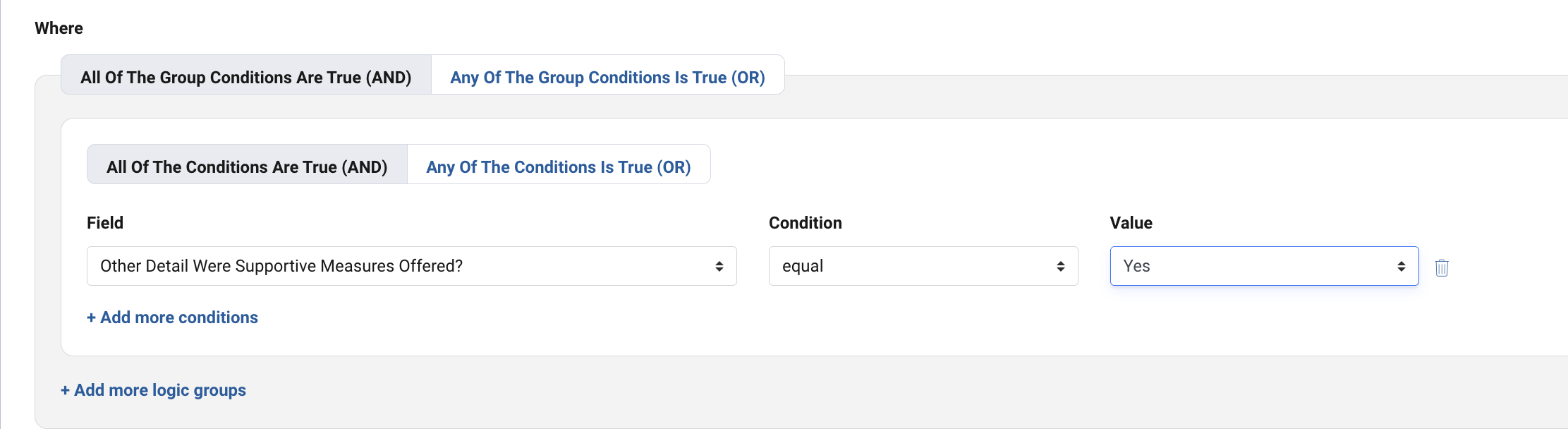
You can also use the mapped question in report logic. For example, you can filter the report to only show cases where:
- Were supportive measures offered? = Yes
- Were supportive measures offered? = No
Important Notes
- Mapping applies to future submissions after the setup is completed. If the question was not previously mapped to Other Details, earlier responses do not automatically appear in the new Other Details reporting field.
- For best results, create the reportable Other Details field first, then map the Incident Report form question to that field before collecting responses.
Summary
The best way to report on custom Incident Report questions is to:
- Create the question as an Other Details field on the case.
- Map the Incident Report form question to that Other Details field.
- Use the Other Details field in the Custom Report Builder.
Once this is configured, Guardian will automatically populate the answer on the case, and the field will be available for reporting.